Other resources for verifiers
Here are some links to additional sources of information for iRecord verifiers:

Here are some links to additional sources of information for iRecord verifiers:
This new page is designed to make it easier for verifiers to review records that have photos attached. Photo records will still be shown on the main verification page as well, so verifiers can choose whether to do all their verification on the current page, or try the new one for the records with photos.
As a verifier you are able to download the record details for all the records that you are able to verify. Currently this is done by going to the Explore menu and choosing Download. Then, in the “Download type”, select your verification role:
The various options for filtering and for verifying multiple records offer many ways in which verification can be organised. It’s worth spending some time thinking about what works best for your purposes. If your scheme receives records at a relatively slow pace you may well be able to verify each one individually as they arrive. But schemes that have larger amounts of data arriving may need a different approach.
Familiarity with record filtering is an essential step towards verification of multiple records (see Verifying multiple records). There are several different ways of filtering records in the grid.
This page explains how to work with individual records, but note that it is also possible to add a verification status to multiple records at once (see Verifying multiple records).
The map is provided to give some context to the record and allow you to check whether the location seems to be correctly recorded. There are some map settings that allow you control the layers that appear on the map; the default view shows:
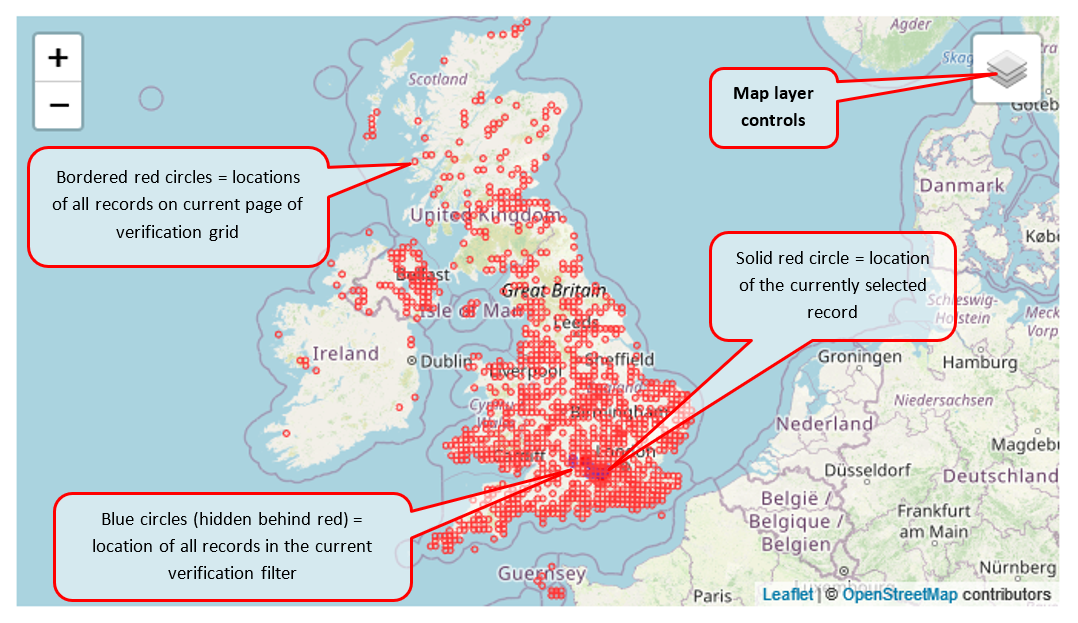
If you put your mouse over the “Map layer controls” box it will open up and show you some tick-box options:
If you click once on any record in the grid, the details for that record will be displayed in the record details pane on the right of the grid.
By default the grid displays only those records that have not yet been verified. You can use the filter settings to change this if you want to see the records that have already been verified (see Filtering records in the grid). This page explains the verious elements on the verificaiton grid: